



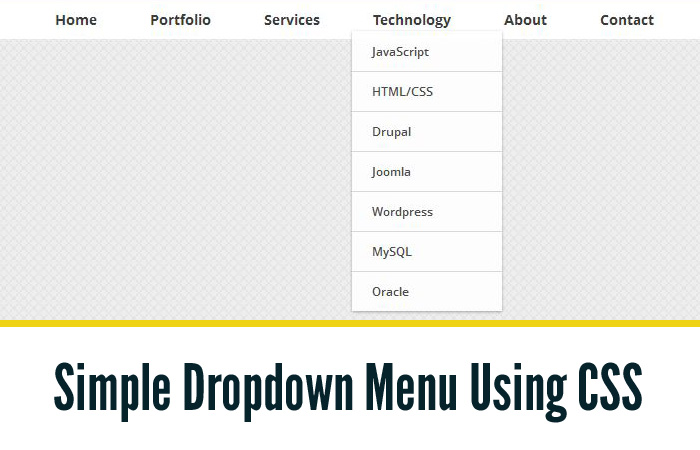
In this tutorial we will create a clean and minimal dropdown menu using pure CSS and HTML. It is possible to create a beautiful dropdown menu with some of the fancy properties of CSS. This will be a good example for those who are quite uncomfortable with the JavaScript coding. The complete code is highly customizable and easy to grasp.
HTML
So lets start with some html to create a base code for our menu. This the main navigation ul
<ul id="navigation">
<li>
<a href="index.html">Home</a>
</li>
<li>
<a href="#">Portfolio</a>
</li>
<li>
<a href="#">Services</a>
</li>
<li>
<a href="#">Technology</a>
</li>
<li>
<a href="#">About</a>
</li>
<li>
<a href="#">Contact</a>
</li>
</ul>
After this we will be adding the sub-navigation list to some of the menu items of main navigation
<ul id="navigation">
    <li>
        <a href="index.html" class="main">Home</a>
    </li>
    <li>
        <a href="#" class="main">Portfolio</a>
        <div class="sub-nav-wrapper"><ul class="sub-nav">
            <li><a href="#">Graphics</a></li>
            <li><a href="#">Web</a></li>
            <li><a href="#">Print</a></li>
        </ul></div>
    </li>
    <li>
      <a href="#" class="main">Services</a>
        <div class="sub-nav-wrapper"><ul class="sub-nav">
            <li><a href="#">Web Design</a></li>
            <li><a href="#">SEO</a></li>
            <li><a href="#">Content Writing</a></li>
        </ul></div>
    </li>
    <li>
      <a href="#" class="main">Technology</a>
        <div class="sub-nav-wrapper"><ul class="sub-nav">
            <li><a href="#">JavaScript</a></li>
            <li><a href="#">HTML/CSS</a></li>
            <li><a href="#">Drupal</a></li>
            <li><a href="#">Joomla</a></li>
            <li><a href="#">Wordpress</a></li>
            <li><a href="#">MySQL</a></li>
            <li><a href="#">Oracle</a></li>
        </ul></div>
    </li>
    <li>
      <a href="#" class="main">About</a>
        <div class="sub-nav-wrapper"><ul class="sub-nav">
            <li><a href="#">Location</a></li>
            <li><a href="#">History</a></li>
            <li><a href="#">Jobs</a></li>
            <li><a href="#">Awards</a></li>
        </ul></div>
    </li>
    <li>
      <a href="#" class="main">Contact</a>
    </li>
</ul>
So, for sub-nav-wrapper will be the css class for sub-navigation div which will be visible on hover of it’s parent menu.
CSS
Now let’s add some styling to our dropdown menu and make it functional with CSS. Following css code will apply some makeup to our menu
#navigation {
position: relative;
text-align:center;
}
#navigation li {
position: relative;
list-style: none;
display: inline-block;
margin: 0 20px;
}
#navigation li a {
padding: 5px;
display: block;
font-family: 'Open Sans', Arial, Helvetica, sans-serif;
font-size: 14px;
font-weight: 700;
color: #3b3b3b;
text-align: left;
text-shadow: 1px 1px 0 rgba(255,255,255,0.25);
}
#navigation li:hover .main {
color: #ee4e1d;
}
#navigation li .sub-nav-wrapper {
display: block;
position: absolute;
z-index: 30;
margin-left: -16px;
}
#navigation li .sub-nav-wrapper .sub-nav {
width: 150px;
margin-top: 10px;
background: #fff;
border-top: 1px solid #fff;
box-shadow: 0 1px 2px rgba(0,0,0,0.35);
-moz-box-shadow: 0 1px 2px rgba(0,0,0,0.35);
-webkit-box-shadow: 0 1px 2px rgba(0,0,0,0.35);
}
#navigation li:hover .sub-nav-wrapper {
display: block;
}
#navigation li .sub-nav-wrapper .sub-nav li {
list-style: none;
display: block;
margin: 0;
padding: 0;
text-align: left;
border-bottom: 1px solid #d7d7d7;
}
#navigation li .sub-nav-wrapper .sub-nav li:first-child {
}
#navigation li .sub-nav-wrapper .sub-nav li:last-child {
border: none;
}
#navigation li .sub-nav-wrapper .sub-nav li a {
display: block;
padding: 11px 20px;
font-size: 12px;
font-weight: 600;
text-shadow: 1px 1px 0 rgba(255,255,255,1.0);
box-shadow: inset 0 0 2px rgba(255,255,255,1.0);
-moz-box-shadow: inset 0 0 2px rgba(255,255,255,1.0);
-webkit-box-shadow: inset 0 0 2px rgba(255,255,255,1.0);
}
#navigation li .sub-nav-wrapper .sub-nav li:hover {
background: #f5f5f5;
border-bottom: 1px solid #3b3b3b;
}
And now this is the easy and most important part of this tutorial, making the sub-menu functional with pure css
a, #navigation li .sub-nav-wrapper .sub-nav li {
transition: all 0.5s;
-moz-transition: all 0.5s;
-webkit-transition: all 0.5s;
}
#navigation li .sub-nav-wrapper {
pointer-events: none;
opacity: 0;
filter: alpha(opacity=0);
top: 0;
transition: all 0.35s ease-in-out;
-moz-transition: all 0.35s ease-in-out;
-webkit-transition: all 0.35s ease-in-out;
}
#navigation li:hover .sub-nav-wrapper {
pointer-events: auto;
opacity: 1;
filter: alpha(opacity=100);
top: 30px;
}
With this styling we will be applying some CSS3 transition effects to make a smooth dropdown action. You may have noticed that we have used a css property called pointer-events. When we will assign none value to this property, we are actually disabling the click event on that particular element. When we assign a value auto, then we are allowing the click event. You can know more about pointer-event here CSS pointer-events.
In this way, we have created a beautiful and simple dropdown menu suing CSS only. Have a look on what we have created




Very nice. I would like to check it out but your demo and download link isn’t working. Let me know when you got that fixed and I will come back and check it out.
Cheers!
Jules
Hello Jules,
You just have to close the Twitter follow (or you can follow us) area and it will unlock the Demo and Download link.
Let us know if you still face the issue
Nope, I can’t get the to the download link either.
I had the same “issue”. May be you should consider it as usability problem, because it’s not that intuitive that you need to close the Twitter follow thing.
Here is the direct download link http://www.dzyngiri.com/dginwp/wp-content/uploads/2012/11/Simple-dropdown-menu-using-css-Dzyngiri.zip
Like it in general, there would be a few things I would do to enhance the performance of it a bit. Such as optimise your CSS selectors a little along with removing some unnecessary HTML code, such as the div wrapping the inner ul, etc. Once that is all done should be all good maybe put a little mention in that this won’t work in IE8 and below.
Good stuff though man, nice to see people giving back to the community.
I just tested it out and it seems to work and function correctly in ie8 and ie7 except for the transitions obviously. However, it does not work in ie6, but that shouldn’t be much of an issue since ie6 is practically dead now.