
Customized Calculator using JavaScript
 4 Comments
  Posted under: Freebies, HTML/CSS, jQuery, Plugins, Tutorials
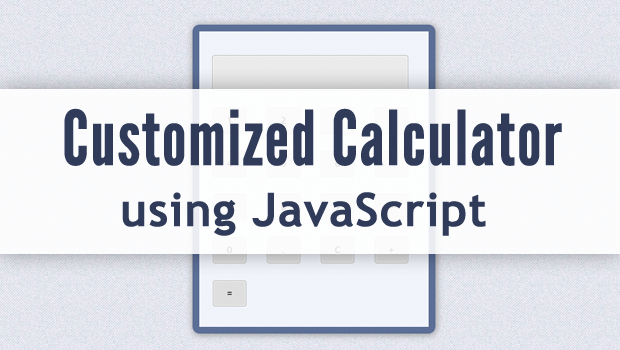
This is the simple example of customized calculator using JavaScript and HTML/CSS. You can do multiplication, division, addition and subtraction operations using this calculator and you can easily implement more operational functions as per your requirements.
HTML
Following HTML code will give us a basic structure of our calculator at front-end
<div class="content">
<div class="button-wrapper">
<div style="float: left;"><input id="screen" class="textbox" type="text" /></div>
<ul id="buttons">
	<li><input class="calc" onclick="pushButton(this.value);" type="button" value="1" /></li>
	<li><input class="calc" onclick="pushButton(this.value);" type="button" value="2" /></li>
	<li><input class="calc" onclick="pushButton(this.value);" type="button" value="3" /></li>
	<li><input class="calc" onclick="pushButton(this.value);" type="button" value="/" /></li>
</ul>
<ul id="buttons">
	<li><input class="calc" onclick="pushButton(this.value);" type="button" value="4" /></li>
	<li><input class="calc" onclick="pushButton(this.value);" type="button" value="5" /></li>
	<li><input class="calc" onclick="pushButton(this.value);" type="button" value="6" /></li>
	<li><input class="calc" onclick="pushButton(this.value);" type="button" value="*" /></li>
</ul>
<ul id="buttons">
	<li><input class="calc" onclick="pushButton(this.value);" type="button" value="7" /></li>
	<li><input class="calc" onclick="pushButton(this.value);" type="button" value="8" /></li>
	<li><input class="calc" onclick="pushButton(this.value);" type="button" value="9" /></li>
	<li><input class="calc" onclick="pushButton(this.value);" type="button" value="-" /></li>
</ul>
<ul id="buttons">
	<li><input class="calc" onclick="pushButton(this.value);" type="button" value="0" /></li>
	<li><input class="calc" onclick="pushButton(this.value);" type="button" value="." /></li>
	<li><input class="calc" onclick="pushButton(this.value);" type="button" value="C" /></li>
	<li><input class="calc" onclick="pushButton(this.value);" type="button" value="+" /></li>
</ul>
<ul id="buttons">
	<li><input class="calc" onclick="calculate(document.getElementById('screen').value);" type="button" value="=" /></li>
</ul>
</div>
Most of the HTML is coding for all the input buttons and their associated onclick event handlers. All the buttons, except for the = button, will call the pushButton JavaScript when clicked and passes it’s associated value. The = button calls the calculate JavaScript function and passes the value that is in the text input which represents the string of numbers and operators that were pushed. The rest of the HTML is just icing on the cake so that it actually looks like a calculator.
JavaScript
And here is our very simple JavaScript, which does the basic arithmetic operations for us
function pushButton(buttonValue) {
     			if (buttonValue == 'C') {
          			document.getElementById('screen').value = '';
     				}
     			else {
          			document.getElementById('screen').value += buttonValue;
     				}
				}
			function calculate(equation) {
     			var answer = eval(equation);
     			document.getElementById('screen').value = answer;
				}
The pushButton function does 2 things for us. If the user clicks on the C button or the clear button, it accesses the text input object, which represents our calculator screen, via the DOM . Once it is accessed, the value inside the text input is set to ” (2 single quotes) which is an empty string. This will basically remove whatever string is already inside the text input. If the user clicks on any other button, the function will access the text input object and append the value that was passed over to whatever is already in our text input. This allows us to build our string with numbers and operators.
The calculate function does exactly what it’s name suggests. It takes our string of numbers and operators and evaluates it in line 10. The eval() function treats the string as if it were JavaScript code and executes it and returns the results. The function will then access the text input object and replace whatever the current value is with the answer from the eval() function.
That’s it! Have a look at what we have created… We would be very glad by your comments, feedback and sharing !

4 Comments + Add Comment
Got anything to say? Go ahead and leave a comment!
Sharing is Caring !
Sponsors
Show some Love !
Sign up for our Newsletter !
Latest Posts
- Enhance Your Web Design Using Simple CSS
- Code First – New Approach by Web Designers?
- Useful Addons for Web Designers and Developers
- Simplex – Free Responsive Template by Dzyngiri
- Customized Calculator using JavaScript
- Best Responsive Websites [Inspiration]
- Slick Contact Form using jQuery and PHP [Tutorial]
- Online Website Builders – You dont have to be a Designer
- Design and Development on Mobile Web
- Intro to SCSS – Your style-sheet on Steroids
Thanks.
It works with mouse clicks, but not with numerical keys of keyboard.
No… the script accepts the value from the buttons only. There is just a 13 line JS code working behind it.
I tried to make it as simple as possible.
But surely next time I will try to do so !
Cheers !
not functioning properly…..it’s allowing u to enter multiple decimals…like 1.1.1+2.2.2
Hey Anurag,
Yes, it allows you to enter the multiple decimals but it wont calculate them and give you some false result.
The validation works only when u submit the fields not while entering the fields.
So you cannot say that it is not functioning properly…!!!!